
Azure Savings Plans: Cut Compute Costs in 2026
Learn how Azure savings plans can reduce your compute spending and optimize cloud costs with this practical guide for 2026.
You know the moment. Finance sends a fresh Azure invoice, an engineering lead opens the bill, and the numbers look higher again, but nobody can cleanly point to the workload that caused it. The team knows there's some kind of discount available, maybe a reservation, maybe something broader, but the actual savings path still feels buried under billing noise and service sprawl.
That's where Azure Savings Plans start to matter. They're the broad compute discount lever that can move across eligible services automatically, which is exactly why they're useful and why they're easy to misread. Microsoft says they can reduce eligible compute prices by up to 65% versus pay-as-you-go rates and apply across Azure Virtual Machines, App Service, Container Instances, and Azure Functions (Microsoft pricing for Savings Plans).
Table of Contents
- Why Azure Bills Keep Surprising Teams
- How Azure Savings Plans Actually Work
- A Worked Example of Hourly Commitment in Action
- How to Buy and Apply a Savings Plan Step by Step
- Savings Plans Compared to Reserved Instances and Spot VMs
- Best-Fit Workloads from SaaS to AI Inference
- Pitfalls That Quietly Drain Savings Plan Value
- Monitoring Utilization and Optimizing Continuously
Why Azure Bills Keep Surprising Teams
An engineering manager sees a growing Azure line item, then asks a simple question that turns into a two-hour meeting, which service drove the jump, and what would a one-click discount save? That's usually when Azure Savings Plans enter the conversation, not because teams were proactively optimizing, but because the invoice finally made inaction uncomfortable.
The surprise is usually structural, not accidental. Azure has multiple discount levers, and the broadest one is also the easiest to misunderstand because it doesn't look like a classic reservation tied to one VM size or one instance. Microsoft says Savings Plans can reduce eligible compute prices by up to 65% versus pay-as-you-go rates, and the discount can apply automatically across VMs, App Service, Container Instances, and Functions (Microsoft pricing for Savings Plans).
Practical rule: if your compute baseline is steady enough to be predictable, but your exact resource shapes shift over time, a savings plan is usually the first discount model worth testing.
That matters because many teams only discover the option after they've already been charged at on-demand rates for too long. By then, the hard part isn't “what is Azure offering?”, it's “can we reconcile it, size it correctly, and prove it saved money?” This guide exists for that second problem, the one most summaries skip.
If you're still comparing discount mechanics, the early procurement conversation often starts with a broader cost review, and this practical overview of monthly cloud bill reduction tactics is a useful companion when you're deciding whether to optimize compute first or attack other spend buckets. The key expectation is simple, realistic savings come from matching hourly usage, while reservations usually fit a narrower, fixed footprint.
How Azure Savings Plans Actually Work
Azure Savings Plans are a spend-based commitment. You commit to a fixed hourly dollar amount for a 1-year or 3-year term, and Microsoft automatically applies the discount to eligible compute usage up to that hourly commitment (Microsoft compute overview). That's the whole mechanic, and it's much closer to a pricing contract than a resource purchase.
The hour is the unit that matters
A pre-paid phone plan without rollover. You buy a spending tier, Azure uses it against eligible compute in that hour, and anything unused in that hour doesn't carry forward. Microsoft's own overview says the unused commitment is not carried forward, so the benefit only works when the commitment matches actual usage patterns (Microsoft savings plan overview).
That design is why people get tripped up. They expect a monthly discount, but the accounting happens hour by hour. If a workload spikes at noon and quiets down at night, the plan can still work well, but only if the hourly commitment is sized to the true baseline rather than the loudest hour on the graph.
Why it feels different from reservations
The flexibility is the core difference. Azure applies the commitment across eligible compute services without pre-assigning specific VM sizes or instances, and the discount flows to the usage that benefits most. That's materially different from a resource-specific reservation, where the discount is attached to a narrower footprint (Nops comparison of savings plans vs. reserved instances).
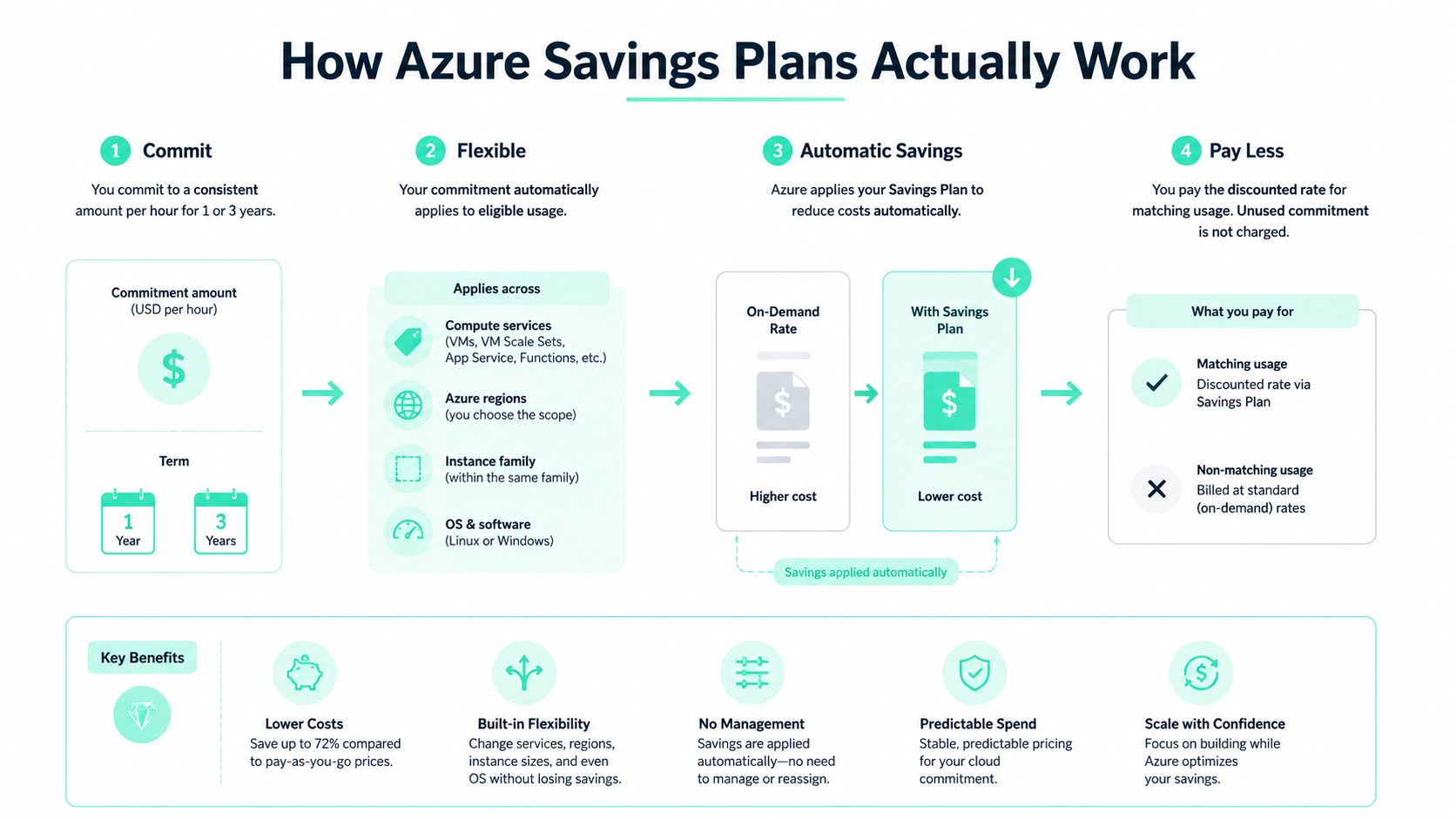
That flexibility is the reason teams use Savings Plans for broader compute coverage instead of locking themselves to one resource family. It's also why they can reduce operational risk when environments evolve, because the plan follows eligible consumption rather than a single preselected instance shape.
A Worked Example of Hourly Commitment in Action
A commitment only makes sense when you can see the hour-by-hour behavior. Say a team runs a steady App Service workload plus a couple of VMs and commits to $5 per hour on a 1-year plan. In a typical hour, that commitment gets applied automatically to eligible usage first, and only the overflow falls back to pay-as-you-go.
A quiet hour and a busy hour tell the real story
Here's the simple table that matters.
| Hourly usage | Plan covers | Pay-as-you-go portion | Effective discount |
|---|---|---|---|
| $3 | $3 | $0 | Some commitment is unused |
| $5 | $5 | $0 | Full hourly commitment used |
| $7 | $5 | $2 | Overflow billed at pay-as-you-go |
If usage is only $3 in a given hour, the plan still consumes the full commitment logic for that hour, and the unused commitment is not carried forward (Microsoft savings plan overview). That's why quiet overnight windows can erode savings if the hourly amount is too high.
The same thing happens in reverse when demand rises. At $7 of eligible usage, the commitment still only covers $5, and the extra $2 is billed normally. That isn't a failure, it's the expected split. The plan helps most when the commitment is aligned to a durable baseline, not to peak load.
Practical rule: size the hourly commitment to the boring part of the day, not the busiest hour on the chart.
When I sanity-check a plan, I always compare the commitment against real hourly patterns, not just monthly averages. A calculator like SpendLens AI's savings estimator can help teams model the math before they buy, especially when they need to compare several baseline assumptions. The point isn't to predict every hour perfectly, it's to avoid committing to capacity the estate won't consume.
How to Buy and Apply a Savings Plan Step by Step
The purchase flow is short. The decision process before purchase is where savings are either realized or a future cleanup project is created.
Start with prerequisites, not the portal button
You need the right billing setup, the right permissions, and a clear view of which subscriptions or management groups you want the commitment to cover. Azure's own model is spend-based, and the commitment is applied automatically across eligible compute rather than to a single resource instance, which is why scope matters more than a casual click-through purchase (Nops comparison of savings plans vs. reserved instances).
The practical decision path is straightforward:
- Check billing access. Make sure the account has the permission to purchase savings plans.
- Review usage patterns. Don't size the commitment from a single week of data.
- Choose term and hourly amount. The commitment risk lives here.
- Set scope carefully. Use the billing or management scope that matches how finance wants the discount applied.
The portal path usually starts from Reservations plus Savings Plans, then moves into purchase. After purchase, verify the commitment in Reservations plus Savings Plans and in Cost Management utilization views so you can confirm the discount is flowing to eligible usage.
Split scope when the estate is not uniform
A single commitment doesn't have to map to a single team. In larger environments, splitting commitments across scopes can be cleaner than forcing one plan to carry every workload, especially when one subscription is stable and another is still changing shape.
If your org has one cluster of always-on production compute and another group that fluctuates, separate commitments often make reporting easier. That's not because the discount logic changes, but because the finance story becomes clearer when each scope maps to a distinct usage pattern.
The purchase itself is simple. The hard part is resisting the urge to size off optimism. A good plan is one the estate can keep feeding every hour, not one finance liked on a slide.
Savings Plans Compared to Reserved Instances and Spot VMs
A lot of bad Azure decisions come from comparing the wrong tools. Savings Plans, Reserved Instances, and Spot VMs solve different problems, and the best fit depends on how much flexibility the workload needs versus how much discount depth you want.
The simple decision matrix
| Lever | Commitment | Flexibility | Best for |
|---|---|---|---|
| Savings Plans | Hourly spend commitment | High across eligible compute | Steady compute with evolving shapes |
| Reserved Instances | Specific resource or family | Lower | Fixed, long-lived footprints |
| Spot VMs | No commitment, interruptible capacity | Highest operational risk | Fault-tolerant, interruptible jobs |
Reserved Instances can go deeper on the workloads they match, especially when the footprint is known and stable. Spot VMs are the opposite extreme, they're cheap because they're interruptible, so they suit batch and fault-tolerant work, not always-on services. Savings Plans sit in the middle, broader than RIs and much more reliable than Spot.
That's why the benchmark data matters. An independent 2026 benchmarking study reported 20–35% 1-year discounts and 35–55% 3-year discounts from Azure Savings Plans among benchmarked enterprises, with 42% of benchmarked enterprises using them (Microsoft Savings Plans pricing page). The same benchmark found best-in-class Azure customers at 68% RI and Savings Plan coverage versus an industry average of 41%, which is a 27-percentage-point gap and, for organizations spending $30M+, an estimated $2M–$4M annual cost difference (Microsoft Savings Plans pricing page).
When each lever wins
- Savings Plans: use them when the workload is steady but the exact service mix can move.
- Reserved Instances: use them when the resource footprint is known and stays put.
- Spot VMs: use them when interruption is acceptable and cost matters more than continuity.
Choose the tool that matches the operational shape of the workload, not the one with the biggest headline discount.
That's the practical rule I've seen hold up in production estates. If the baseline is flexible and continuous, Savings Plans are usually the cleanest commitment model. If the baseline is fixed and boring, reservations can win. If the workload can disappear without drama, Spot VMs belong in the conversation.
Best-Fit Workloads from SaaS to AI Inference
The best Azure Savings Plans candidates are the workloads that burn compute in a stable rhythm. A SaaS API on App Service is the textbook example because it tends to run continuously and predictably, which gives the plan something to cover every hour.
Where the plan fits naturally
Azure's eligible compute set includes Virtual Machines, App Service, Azure Functions, and Azure Container Instances, and workloads that run continuously on those services can shift onto a correctly sized hourly commitment and reduce their effective hourly rate versus pay-as-you-go (ProsperOps on Azure Savings Plans).
That makes steady-state production services the easiest win. A customer-facing API, background processing tier, or always-on inference endpoint can all benefit if the hourly usage is predictable enough to absorb the commitment. The same logic applies when a team has multiple services sharing the same baseline, because the plan can move across eligible usage rather than sit idle on one narrow resource.
AI inference needs a sharper eye
AI inference is where the workload shape matters more than the label. GPU-backed VMs that run 24/7 are often a strong fit because they behave like any other continuous compute workload. Patchy or bursty inference, especially when teams alternate between serverless, spot, and low-duty-cycle deployments, can make hourly commitment sizing much harder.
That's the part teams miss when they treat “AI spend” as one bucket. Infrastructure commitment and model usage aren't the same thing, and they shouldn't live in the same mental drawer. A practical setup keeps compute commitment reporting separate from LLM usage visibility, and tools like SpendLens AI can sit alongside Azure reporting when teams want to understand model, prompt, and provider spend as well as the infrastructure bill.
Quick fit check
- Good fit: continuous SaaS APIs, always-on VMs, baseline inference serving.
- Mixed fit: scheduled batch jobs, training runs that come and go, dev and test estates.
- Poor fit: highly intermittent, short-lived, or aggressively bursty compute.
The rule isn't “AI never works.” It's that AI inference works best when the service runs like a utility, not like a pop-up event. If the compute baseline is steady, Savings Plans can clean up a lot of waste without changing the app architecture.
Pitfalls That Quietly Drain Savings Plan Value
The biggest mistake isn't buying a plan. It's buying one and assuming the bill will become self-explanatory. That's where chargeback, attribution, and utilization all start to drift apart.
The CSP reconciliation problem
Under CSP, Microsoft notes that the savings-plan discount is not re-allocated back to individual compute resources, so resources can still appear at full pay-as-you-go cost in both Actual and Amortized views in Cost Management (Microsoft discount application note). That's the reconciliation trap that breaks resource-level chargeback, because the savings exist at the commitment level even when the resource line items don't show an obvious discount.
If finance expects every VM to show a visibly lower unit cost, the report will look wrong even when the plan is working. The fix is to change the allocation method, not to assume the plan failed. A useful reference point for that kind of allocation design is SpendLens AI's overview of cost allocation methods, especially when the bill needs to be reconciled across teams rather than just reviewed at the total level.
Quiet waste comes from quiet hours
The second failure mode is simpler. If usage drops below the hourly commitment overnight or during weekends, that unused commitment is still gone for that hour. There's no rollover, so the waste is real, not theoretical.
The third failure mode is over-commitment. Teams often size a 3-year plan to peak usage because the headline discount looks compelling, then discover later that the workload shrank, got retired, or moved to a different architecture. That's where the operating risk shows up, not in the purchase screen.
The plan only looks generous if the estate keeps consuming it.
Before renewing or expanding, ask three questions. Is the hourly baseline still stable, is chargeback being handled at the commitment level, and has the workload shape changed enough that a different mix of reservations and Savings Plans would be cleaner? If any of those answers are fuzzy, buy less, not more.
Monitoring Utilization and Optimizing Continuously
Savings Plans aren't a one-time procurement event. They're an operating habit, and the teams that win with them usually treat monitoring as part of the commitment, not an optional afterthought.
The four metrics that actually matter
- Utilization percentage. This tells you how much of the commitment is being used.
- Effective savings rate versus pay-as-you-go. This shows whether the commitment is delivering the expected value.
- Uncovered eligible spend. This reveals how much eligible usage fell outside the plan.
- Remaining term value. This helps you decide whether to top up, split, or let the plan run out.
Azure Cost Management surfaces utilization and troubleshooting data, and that's where the monthly review should live. Don't wait for quarterly finance meetings to discover that a plan has drifted away from the workload it was built for.
A monthly rhythm works better than a heroic reset
A simple cadence is enough. Review utilization once a month, compare it against the prior month, and look for sustained underuse before it turns into an expensive habit. If utilization stays soft, consider a trade-in or a smaller replacement rather than letting the plan keep burning unused hours.
When you're running AI workloads alongside Azure compute commitments, keep the reporting separate enough to see where the money goes. SpendLens AI's cloud cost management guide is relevant here because the same discipline that helps with cloud commitment governance also helps teams keep feature-level, workload-level, and provider-level spend visible.
Operating rule: top up when the baseline has clearly grown, split when one commitment is carrying too many patterns, and let a plan expire when the estate is shrinking.
That's the FinOps posture that holds up in production. Treat Azure Savings Plans like a living commitment, not a static discount badge, and they'll do what they're supposed to do, reduce compute cost while preserving flexibility.
If you want help turning Azure compute usage into a commitment plan you can defend in finance, visit SpendLens AI and use it to map spend, attribute cost drivers, and keep optimization decisions tied to real workload behavior. It's built for teams that need clearer cloud and AI cost visibility before they commit to another year of infrastructure spend.